Be a great Blogger


Start a blog. If you don't own a blog you can start blogging at Wordpress. Other recommended sites include blogger (it allows you to see statistics of who has been looking at your blog, along with many customization  options for the layout). If you do own a blog, good for you! Go to the next step.


Pick a topic that you are passionate about. Even if you don't have a passion, writing about your daily life can make for a good read, depending how you word it. If you are going to blog about what you did today, make it interesting. People are looking for a funny story or your opinion on a debatable subject. They may not be as willing to read how you changed a lightbulb today. Using photos can help enhance the reading experience and engage readers more.


Learn about search engine optimization (SEO). The very basics of this is knowing which keywords to focus on. These are what people are searching for in the search engines, and how they might find your blog. Some of these keywords get a lot more searches than others get, so it's in your best interest to eventually choose the ones that do get searched for often. Keep in mind that these are often more competitive than ones that are searched for less -- but you might get lucky.


Focus your efforts on these keywords for now. Choose a big one that will take longer to reach, as well as three to four additional terms you're going to try to rank for. These should all be similar! Then, you're going to include these keywords in each blog post you make in various combinations. Always focus your posts on one term, and include the others only if they make sense. As you focus on these similar keywords the search engines will start to rank you more highly because your blog is tightly focused and relevant to what you're targeting.


Do what you can to get relevant links that point to your homepage and your individual posts. A lot of ranking decisions are based on how many backlinks you have coming into your website. You can get these links by writing articles to submit to directories, writing guest blog posts on other high traffic blogs, using social networking sites, using social bookmarking sites, and buying links (be very careful with this tactic).

Steps to Protect Your PC from Hackers

Steps to Protect Your PC from Hackers

There are numerous ways to protect and remove malware from our computers. No one method is enough to ensure your computer is secure. The more layers of defense, the harder for hackers to use your computer. Here are five simple, but critical steps to protect your computer,
Install Firewall
Install Antivirus Software
Install Anti-Spyware Software
Use Complex and Secure Passwords
Check on the Security Settings of the Browser

Install Firewall
A firewall enacts the role of a security guard. There are of two types of firewalls: a software firewall and hardware firewall. Each serves similar, but different purposes. A firewall is the first step to provide security to the computer. It creates a barrier between the computer and any unauthorized program trying to come in through the Internet. If you are using a system at home, turn on the firewall permanently. It makes you aware if there are any unauthorized efforts to use your system.
op-cis-complete-big
Install Antivirus Software:
Antivirus is one other means to protect the computer. It is software that helps to protect the computer from any unauthorized code or software that creates a threat to the system. Unauthorized software includes viruses, keyloggers, trojans etc. This might slow down the processing speed of your computer, delete important files and access personal information. Even if your system is virus free, you must install an antivirus software to prevent the system from further attack of virus.
Antivirus software plays a major role in real time protection, its added advantage of detecting threats helps computer and the information in it to be safe. Some advanced antivirus programs provide automatic updates, this further helps to protect the PC from newly created viruses.
Antivirus for Windows 8 software may include advanced features such as email protection, blocking of pop-ups and identity theft.
Install Anti-Spyware Software:
spySpyware is a software program that collects personal information or information about an organization without their approval. This information is redirected to a third party website. Spyware are designed in such a way that they are not easy to be removed. Anti-Spyware software is solely dedicated to combat spyware. Similar to antivirus software, anti-spyware software offers real time protection. It scans all the incoming information and helps in blocking the threat once detected. Comodo Antivirus comes with spyware protection built in.
Use Complex and Secure Passwords:
passwordThe first line of defence in maintaining system security is to have strong and complex passwords. Complex passwords are difficult for the hackers to find. Use a password that is at least 8 characters in length and include a combination of numbers, letters that are both upper and lower case and a special character. Hackers use certain tools to break easy passwords in few minutes. One recent study showed that a 6 character password with all lower 

Security Tips on Facebook

Security Tips


Here are 6 things you can do to help keep your account safe:


Protect your password:

Don't use your Facebook password anywhere else online.

Never share your password. You should be the only one who knows it.


Avoid including your name or common words. Your password should be difficult to guess.


Use our extra security features.

Make sure your email account(s) are secure.

Log out of Facebook when you use a computer you share with other people. If you forget, you can log out remotely.

Run anti-virus software on your computer:

For Windows

For Mac OS

Protect your Facebook account

Hey guys! If you're looking to completely customize your Facebook privacy, you're expected to work your way through 40 entries, many of which list multistep instructions for changing a single setting.

Wouldn't you rather spend your time on Facebook sharing pictures of your fast-food lunch or watching videos of grumpy cats? If so, you can skip scrolling through screen after screen of shag-carpet text and instead zip through this six-step Facebook privacy refresher.


Step one: See your profile as others see it
Once you know how forthcoming your current Facebook setup is, you can decide what changes you need to make to your share settings. To view your account as others view it, sign into your account, choose the gear icon in the top-right corner, click Privacy Settings, and select Timeline and Tagging in the left pane.


If you've limited access to your timeline to friends only, the public will see only your profile and cover photos, a link for contacting you (which you can limit to friends of friends), the people you're following, and the groups you belong to. To view your profile as a particular person sees it, click View as Specific Person at the top of the window and enter the person's name.

To change who can view your timeline, return to Facebook's Timeline and Tagging settings and click Edit to the right of "Who can see posts you've been tagged in on your timeline?" and "Who can see what others post on your timeline?" Make your selections for each setting on their drop-down menus and then click Close.


Step two: Make sure you're browsing securely
Last month Facebook made secure browsing the default for all users. To ensure you're using a secure connection whenever one is available, click Security in the left pane of Facebook's Account Settings and make sure Secure Browsing is enabled.

The security settings also let you enable log-in notifications and approvals, and view and edit your recognized devices and active sessions. To remove a device, click Edit to the right and then Remove next to the device's entry. Likewise, to end one or all active Facebook sessions, click Edit to the right of Active Sessions and choose End Activity or End All Activity, respectively.


Step three: Limit access to you and your Facebook stuff
To restrict access to your past and future Facebook posts, click Privacy in the left pane of the Account Settings. Then choose Limit Past Posts under "Who can see my posts?" and Edit to the right of "Who can see your future posts?" in the same section. A warning appears when you attempt to limit access to all your past posts at once rather than changing the setting post-by-post.


The options under "Who can contact me?" let you limit friend requests and filter the messages you receive. You can also restrict who can look you up by e-mail address and phone number, who can look up your timeline by name, and whether your timeline will link to search engines.

Step four: Tame your timeline and tags
You've already determined who can view your timeline (see step one), but you can also block friends from adding to your timeline and review photos someone attempts to tag you in via the Timeline and Tagging Settings. The only two options for "Who can post to my timeline?" under "Who can add things to my timeline?" are Friends and Only Me. To enable review of posts your tagged in before they appear on your timeline, click Edit to the right of the entry and select Enable in the drop-down menu.

Under "How can I manage tags people add and tagging suggestions?" you can enable the feature that allows you to review tags people add to your own posts before they appear, set who besides the normal audience sees the posts you're tagged in, and decide whether tag suggestions appear when photos that look like you are uploaded.


Step five: Don't let your apps run amok
Some Facebook apps grab all the permissions they can, including access to your information and the ability to post photos and status updates "on your behalf." For example, the IFTTT app lays claim to your complete profile and all your activities, as well as some of the profile and activities of your friends.


To review your Facebook app permissions, click Apps in the left pane of the Account Settings window, choose Edit to the right of the app's entry, and either change the app's visibility via the drop-down menu, or click "Remove app" at the bottom of the entry. You can also click "Report app" to let Facebook know the app is spam, inappropriate, or requesting too much information, or to contact the developer to report a bug or abusive content, or for another reason.

Step six: Opt out of Facebook ads
Facebook currently doesn't let third-party apps or ad networks use your image or name in ads, but that may change in the future. To opt out ahead of time, click Ads in the left pane of the Account Settings window and choose Edit in the Third Party Sites section. Select "No one" in the drop-down menu under "If we allow this in the future, show my information to" and then click Save Changes.

To exclude yourself from Facebook's social ads, click Edit in the Ads & Friends section, choose "No one" on the drop-down menu next to "Pair my social actions with ads for," and select Save Changes.

Stop your Gmail account being hacked

 Stop your Gmail account being hacked

This wasn't a sophisticated attack against Google's systems, but rather a cleverly-crafted HTML email which pointed to a Gmail phishing page.

Victims would believe that they had been sent an attachment, click on the link, and be greeted by what appeared to be Gmail's login screen. Before you knew it, your Gmail username and password could be in the hands of unauthorised parties.

So, what steps should you take to reduce the chances of your Gmail account being hacked?

Set up Two step verification
Check if your Gmail messages are being forwarded without your permission
Where is your Gmail account being accessed from?
Choose a unique, hard-to-crack password
Secure your computer
Why are you using Gmail anyway?


. Set up Two step verification

The hackers who broke into high profile Gmail accounts grabbed usernames and passwords. So, an obvious thing to do would be to make Gmail require an extra piece of information before allowing anybody to access your account.

Google provides a facility called "two step verification" to Gmail users, which provides that extra layer of security. It requires you to be able to access your mobile phone when you sign into your email account - as they will be sending you a magic "verification" number via SMS.

The advantage of this approach - which is similar to that done by many online banks - is that even if cybercriminals manage to steal your username and password, they won't know what your magic number is because they don't have your phone.

Google has made two step verification easy to set up.

Once you're set up, the next time you try to log into Gmail you'll be asked for your magic number after entering your username and password. Your mobile phone should receive an SMS text message from Google containing your verification number.

Let's just hope the bad guys don't have access to your mobile phone too..

Here's a video from Google where they explain two step verification in greater detail:


By the way, note that two step verification doesn't mean that your Gmail can't ever be snooped on by remote hackers. They could, for instance, install spyware onto your computer which could monitor everything that appears on your screen. But it's certainly a good additional level of security for your Gmail account, and one which will make life much more difficult for any cybercriminal who might be targeting you.

2. Check if your Gmail messages are being forwarded without your permission

Gmail gives you the ability to forward your emails to another email address. There are situations where this might be handy, of course, but it can also be used by hackers to secretly read the messages you receive.

Go into your Gmail account settings, and select the "Forwarding and POP/IMAP" tab.

If your emails are being forwarded to another address, then you will see something like the following:


That's fine if you authorised for your emails to be forwarded to that email address, but a bad thing if you didn't.

If your messages are not being forwarded you will see a screen more like this:


Hackers want to break into your account not just to see what email you've received up until their break-in. Ideally, they would like to have ongoing access to your email, even if you change your password or enable two step verification. That's why it's so important to check that no-one has sneakily asked for all of your email to be forwarded to them.

In a similar vein, you had best ensure that no-one has unexpectedly been authorised to read and send email from your account.


Check that no-one unexpected is listed under the "Grant access to your account" option (found under "Accounts and Import" in Gmail's settings).

Even if you have granted permission for someone else to access your Gmail account, your security is now only as strong as that person's account security.

3. Where is your Gmail account being accessed from?

At the bottom of each webpage on Gmail, you'll see some small print which describes your last account activity. This is available to help you spy if someone has been accessing your account at unusual times of day (for instance, when you haven't been using your computer) or from a different location.


Clicking on the "Details" option will take you to a webpage describing the type of access and the IP address of the computer which logged your email account. Although some of this data may appear nerdy, it can be a helpful heads-up - especially if you spot a computer from another country has been accessing your email.


4. Choose a unique, hard-to-crack password

As we've explained before, you should never use the same username and password on multiple websites. It's like having a skeleton key which opens every door - if they grab your password in one place they can try it in many other places.

Also, you should ensure that your password is not a dictionary word, and is suitably complex that it's hard to break with a dictionary attack.

Here's a video which explains how to choose a strong password, which is easy to remember but still hard to crack:


5. Secure your computer

Secure PCIt should go without saying, but this list would be unfinished without it. You need to properly secure your computer with up-to-date anti-virus software, security patches and so forth. If you don't, you're risking hackers planting malicious code on your computer which could spy upon you and, of course, your email.

You always want to be certain that your computer is in a decent state of health before you log into a sensitive online account, such as your email or bank account. That's one of the reasons why I would always be very nervous about using a computer in a cybercafe or hotel lobby. You simply don't know what state the computer is in, and who might have been using it before.

6. Why are you using Gmail anyway?

Okay, I don't really mean that. But I do mean, why are you storing sensitive information in your Gmail account?

The news headlines claim that senior US political and military officials were being targeted by the hackers. Surely if they had confidential or sensitive data they shouldn't have that in their webmail account? Shouldn't that be on secure government and military systems instead?

Always think about the data you might be putting on your web email account - because if it's only protected by a username and password that may actually be less security than your regular work email system provides
Information in creating a strong password

Information in creating a strong password
Information about the passwords provide the first line of defense against unauthorized access to your computer. The stronger your password, the more protected your computer will be from hackers and malicious software. You should make sure you have strong passwords for all accounts on your computer. If you're using a corporate network, your network administrator might require you to use a strong password.

What makes a password strong (or weak)?

A strong password:

Is at least eight characters long.

Does not contain your user name, real name, or company name.

Does not contain a complete word.

Is significantly different from previous passwords.

Contains characters from each of the following four categories:

Character category
Examples:
Uppercase letters
A, B, C
Lowercase letters
a, b, c
Numbers
0, 1, 2, 3, 4, 5, 6, 7, 8, 9
Symbols found on the keyboard (all keyboard characters not defined as letters or numerals) and spaces
` ~ ! @ # $ % ^ & * ( ) _ - + = { } [ ] \ | : ; " ' < > , . ? /

A password might meet all the criteria above and still be a weak password. For example, Hello2U! meets all the criteria for a strong password listed above, but is still weak because it contains a complete word. H3ll0 2 U! is a stronger alternative because it replaces some of the letters in the complete word with numbers and also includes spaces.

Help yourself remember your strong password by following these tips:

Create an acronym from an easy-to-remember piece of information. For example, pick a phrase that is meaningful to you, such as My son's birthday is 12 December, 2004. Using that phrase as your guide, you might use Msbi12/Dec,4 for your password.

Substitute numbers, symbols, and misspellings for letters or words in an easy-to-remember phrase. For example, My son's birthday is 12 December, 2004 could become Mi$un's Brthd8iz 12124 (it's OK to use spaces in your password).

How to log-out in messenger?

Go to Settings > Applications > Manage Applications. Open 'Messenger' and 'Clear Data'. Go to 'Messenger' on the home and it will start with login screen again.

Hello everybody,
The only way to log out of Messenger on android devices is:
Log out facebook ap on your phone. Normally, when you log out your facebook ap, the messages are still visible on your messendger. So if you still have messenger opened in the background, close it as well.
Go to the home screen, and press the home button until it shows another window. There you’ll see some options like: recent apps, close recent apps, etc. In the left bottom corner side of your phone, you’ll notice Task manager. Tap there, and the program will show three or four tabs. Basically, messenger is a downloaded app, so click on the Downloaded applications tab, and then tap on messenger. Click “Clear Data”, and “Clear cash”,. You are now loged out of messenger!
And if you want to try if this works or not, open your Messenger app, and it will ask you to enter your e-mail address and your password.
So far, this is the shortest way I could find in order to log out of messenger on android. Hope It’s useful for you.

How to change your default settings?

How to change your default settings

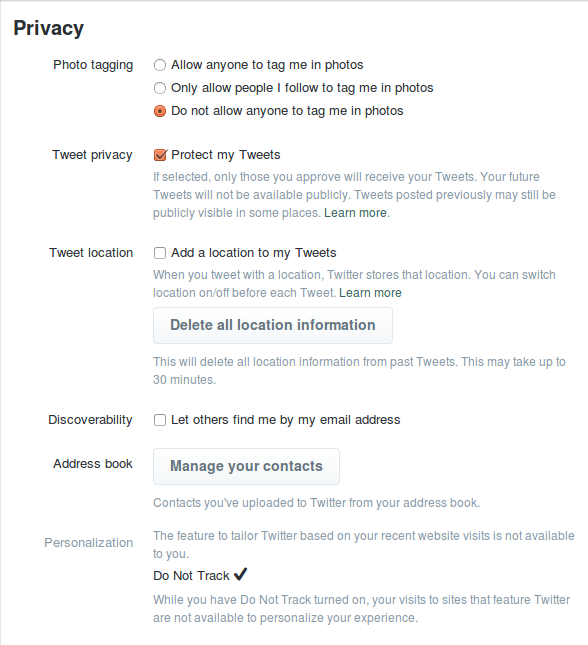
In your browser:  Click on your profile picture  --> settings --> security and privacy  → and check the following boxes:
Twitter privacy settings

Photo Tagging --> Check: Do not allow anyone to tag me in photos
Though others can still upload photos of you, you now can't be publicly tagged in them.

Tweet Privacy  --> Check: Protect My Tweets

People will now need your permission before they can follow you (though you will keep all the followers you have now). Future tweets will only be visible to your followers, no-on can retweet your tweets, and your tweets will not show up in Google search results.

Limitations: you can't reply to tweets posted by non-followers.

Note: this only works on future tweets; all past tweets will still be public.

Tweet location → Uncheck: Add a location to my tweets   


Unchecking this box prevents you accidentally posting a tweet which includes your location.

If the box is checked: With each tweet you send you have the option to add location data or not.

Note: Location data can tell a very detailed story about you, and there are online tools available that enable people to easily map your movements.

Discoverability --> Uncheck: Let others find me by my email address

People now can't find your Twitter account by searching your email address. This is especially important if you have a pseudonymous Twitter account, or if you do not want your email address publicly linked to your account.

If you use Twitter on your mobile
Click on Me -->  --> your account ('OnonymousTTC', for example) --> privacy

Photo Tagging --> Turn it off
Though others can still upload photos of you, you can't be publicly tagged in them.

Tweet Privacy  --> Turn it on  
eople will now need your permission before they can follow you (though you will keep all the followers you have now). Future tweets will only be visible to your followers, no-on can retweet your tweets, and your tweets will not show up in Google search results.

Limitations: you can't reply to tweets posted by non-followers.

Note: this only works on future tweets; all past tweets will still be public.  

Discoverability --> Turn it off
People now won't be able to find your Twitter account by searching your email address. This is especially important if you have a pseudonymous Twitter account, or if you do not want your email address publicly linked to your account.


If you want to create an "anonymous" Twitter account
To increase your privacy you can use a pseudonym and a random picture, but when you register for a Twitter account, your email address and mobile phone number are asked for.

If you register for your account through your browser (not your phone), you can avoid giving your mobile phone number, but you still have to provide a an email address. For more on how to set up an alternative email account, go here.

To create an 'anonymous' account → go to your browser → register with a pseudonym and an anonymous email account → skip the steps that require personal data.  

Note: If creating a Twitter account with a pseudonym, be careful not to use the same email address, phone number or profile picture as your other online accounts (unless these are all linked to the same pseudonymous identity). This will increase the likelihood that other people can tie your pseudonymous Twitter account to your other accounts.

Note: pseudonymity on a commercial platform is always only skin-deep. Unless you take other precautions, Twitter has access to the email address and/or phone number you provide when registering for an account, as well as your IP address when you use Twitter to send a Tweet, and possible data from cookies in your browser.


Tips to increase your privacy on Twitter
Linking twitter to other accounts
Limit third party linking to your Twitter account. Some websites, social networks and apps give you the option to sign in or to verify your identity by linking your Twitter account to their service.

Note: If you do this, you're giving the third party (the website, social network or app) access to your Twitter username, your lists of followers and following, your location (if you share it) and your tweets - even if you've set them to "Private". You will also be giving Twitter information about the other services that you use.

How private are your direct messages?
Direct messages are private messages you can send to other tweeters. Note that other Twitter users will not see these messages, but Twitter always has access to them and can store messages even when you have deleted them.

Delete all location information from past Tweets.
Twitter gives you the option to add location to your tweets. You can delete your location information from past Tweets:  

Go to your profile picture  --> settings --> security and privacy → Tweet location → and press 'Delete all location data'

Note: This deletes the public location data from your past tweets, but Twitter can still store this information.

How to create private Twitter lists
When you follow many accounts, Twitter can become overwhelming. Twitter lists are a way to filter the things you are interested in.

How does this work? Say you create a list called 'Environment' for tweets related to the environment. You add people who tend to tweet about environmental issues. Now you have a choice to make your list either public or private.

Public list: Can be seen by your followers. The people you have added to the list will be notified by email.

Private list: This list is for your eyes only, and will not be visible to either your followers or the people included in the list. Note, however, that Twitter also has access to it.

Security: Login Verification
Twitter offers you a security feature to confirm your login with phone verification. This can be found under Security & Privacy -> Login verification. This will help protect your account if someone else has managed to get hold of your password.

Protecting Your Password In Bad People

How many people log-in there Facebook every day and they now how to protect her account in the bad boys.Facebook is part of their everyday life. It’s where they interact with friends and colleagues, and is seen by many as an extension of themselves. Having your Facebook account hacked can be more than just humiliating: depending on what the hackers do, it can damage your reputation or even cost you money. If you suspect that your Facebook account has been hacked, the first thing to do is change your password. This article contains other tips and tricks for boosting the security of your Facebook account.


Part 1 of 5: Protecting Your Password


Create a strong password. Avoid including your name, birthdate, pets, or common words in your password: make it difficult to guess.
A strong password will be at least 8 characters in length, but the more the better. The longer (more characters) your password is, the more time it will take the hacker to crack it.
A strong password should contain at least one of each of the following characters: lower-case letters, upper-case letters, numbers, and special characters.


Do not use your Facebook password anywhere else. Ensure that you create a different password for every web service/website you use.
It’s not enough to do the same password with different numbers (eg., password1, password2 …)
If you’re feeling uncreative and have difficulty thinking up new passwords, use an online password generator — just make sure it’s from a trustworthy source.


Use a password manager. As you create more strong and unique passwords, it will likely be difficult to remember them all. There are many good password managers available that will encrypt and safely store your passwords.
You might even have a password manager built into your operating system — for example, Mac users have the keychain password manager available to them for free.
If you don’t want to use a password manager, use a passphrase, for example: “I like big butts and I cannot lie!” might become iLbBaIcL!


Change your password once every six months. This goes for all of your passwords — not just your Facebook one. If you find it difficult to remember to do this, set a reminder on your calendar.


Do not share your Facebook password with anyone. In fact, don’t share any of your passwords with anyone!


Avoid using the “remember password” feature on web browsers. This is particularly important if you are not using your own computer. When the “remember password” prompt comes up and you are not at your own computer, click on the “not now” button.
If you have set a master password for your browser, you can use the “remember password” function, as having a master password will prompt anyone trying to see your passwords to enter another password (one created by you) just to show the passwords.
Whether your browser automatically saves your passwords in a master password-protected file will depend on your operating system and your browser. You can ensure that a master password is in effect by checking the your browser preferences.

How to secure your Facebook account in six easy steps?

How to secure your Facebook account in six easy steps?

If you're looking to completely customize your Facebook privacy, you're expected to work your way through 40 entries, many of which list multistep instructions for changing a single setting.

Wouldn't you rather spend your time on Facebook sharing pictures of your fast-food lunch or watching videos of grumpy cats? If so, you can skip scrolling through screen after screen of shag-carpet text and instead zip through this six-step Facebook privacy refresher.


Step one: See your profile as others see it
Once you know how forthcoming your current Facebook setup is, you can decide what changes you need to make to your share settings. To view your account as others view it, sign into your account, choose the gear icon in the top-right corner, click Privacy Settings, and select Timeline and Tagging in the left pane.

Next, click View As to the right of "Review what other people see on your timeline" in the "Who can see things on my timeline?" section. Click Okay to close the pop-up window, if necessary. Your timeline will then appear as the public sees it.


If you've limited access to your timeline to friends only, the public will see only your profile and cover photos, a link for contacting you (which you can limit to friends of friends), the people you're following, and the groups you belong to. To view your profile as a particular person sees it, click View as Specific Person at the top of the window and enter the person's name.

To change who can view your timeline, return to Facebook's Timeline and Tagging settings and click Edit to the right of "Who can see posts you've been tagged in on your timeline?" and "Who can see what others post on your timeline?" Make your selections for each setting on their drop-down menus and then click Close.

Step two: Make sure you're browsing securely
Last month Facebook made secure browsing the default for all users. To ensure you're using a secure connection whenever one is available, click Security in the left pane of Facebook's Account Settings and make sure Secure Browsing is enabled.

The security settings also let you enable log-in notifications and approvals, and view and edit your recognized devices and active sessions. To remove a device, click Edit to the right and then Remove next to the device's entry. Likewise, to end one or all active Facebook sessions, click Edit to the right of Active Sessions and choose End Activity or End All Activity, respectively.


Step three: Limit access to you and your Facebook stuff
To restrict access to your past and future Facebook posts, click Privacy in the left pane of the Account Settings. Then choose Limit Past Posts under "Who can see my posts?" and Edit to the right of "Who can see your future posts?" in the same section. A warning appears when you attempt to limit access to all your past posts at once rather than changing the setting post-by-post.


The options under "Who can contact me?" let you limit friend requests and filter the messages you receive. You can also restrict who can look you up by e-mail address and phone number, who can look up your timeline by name, and whether your timeline will link to search engines.

Step four: Tame your timeline and tags
You've already determined who can view your timeline (see step one), but you can also block friends from adding to your timeline and review photos someone attempts to tag you in via the Timeline and Tagging Settings. The only two options for "Who can post to my timeline?" under "Who can add things to my timeline?" are Friends and Only Me. To enable review of posts your tagged in before they appear on your timeline, click Edit to the right of the entry and select Enable in the drop-down menu.

Under "How can I manage tags people add and tagging suggestions?" you can enable the feature that allows you to review tags people add to your own posts before they appear, set who besides the normal audience sees the posts you're tagged in, and decide whether tag suggestions appear when photos that look like you are uploaded.


Step five: Don't let your apps run amok
Some Facebook apps grab all the permissions they can, including access to your information and the ability to post photos and status updates "on your behalf." For example, the IFTTT app lays claim to your complete profile and all your activities, as well as some of the profile and activities of your friends.


Step six: Opt out of Facebook ads
Facebook currently doesn't let third-party apps or ad networks use your image or name in ads, but that may change in the future. To opt out ahead of time, click Ads in the left pane of the Account Settings window and choose Edit in the Third Party Sites section. Select "No one" in the drop-down menu under "If we allow this in the future, show my information to" and then click Save Changes.

To exclude yourself from Facebook's social ads, click Edit in the Ads & Friends section, choose "No one" on the drop-down menu next to "Pair my social actions with ads for," and select Save Changes.